
How to Use AutoReply
A visual walkthrough of every feature — from first install to advanced Pro settings.
Getting Started
After installing AutoReply for Zoom Phone from the Zoom App Marketplace, the app activates automatically — no additional setup required. Your missed calls and voicemails will start getting SMS replies right away using smart defaults.
To view or change your settings, use one of these methods:
Open Zoom Desktop
Launch the Zoom desktop app on your computer
Go to Apps
Click the Apps tab in the left sidebar
Select AutoReply
Choose AutoReply for Zoom Phone from your installed apps
You can also access your settings directly at arzoom.app/settings.
Settings are not yet available on the Zoom mobile app.
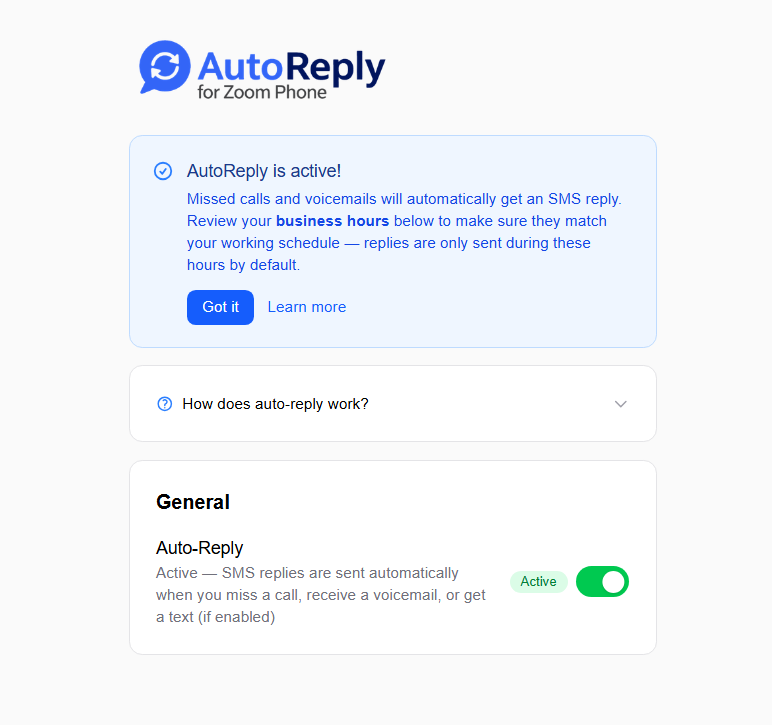
General Settings
The General section controls whether auto-replies are active and how long the app waits before sending. The Auto-Reply toggle turns the entire service on or off. The Reply Delay sets how long the app waits before sending — giving you time to respond yourself. If you do, the auto-reply is automatically cancelled.
Free plan uses a fixed 3-minute delay. Pro lets you adjust from 1 to 60 minutes.
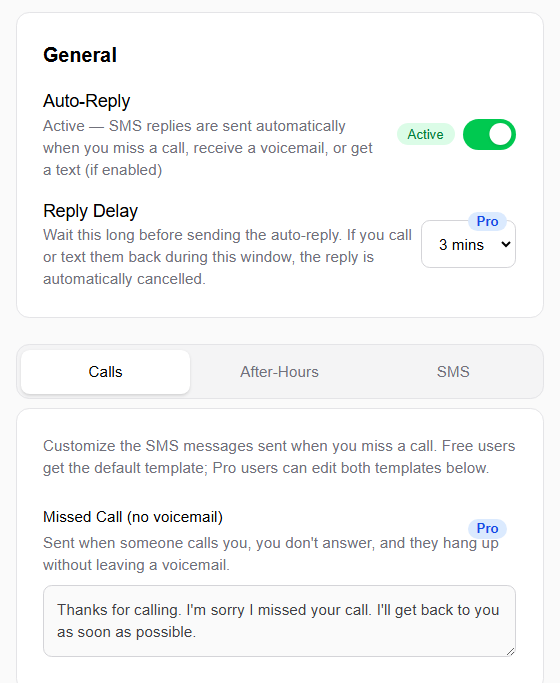
Reply Templates — Missed Calls
Under the Calls tab, customize the SMS sent when you miss a call. There are two templates: one for missed calls without a voicemail, and one for when a voicemail is left. On Free, a default message is used. On Pro, you can write your own for each scenario.
The screenshot above shows the Calls tab with the missed call template. The template supports up to 500 characters.
After-Hours Replies & Business Hours
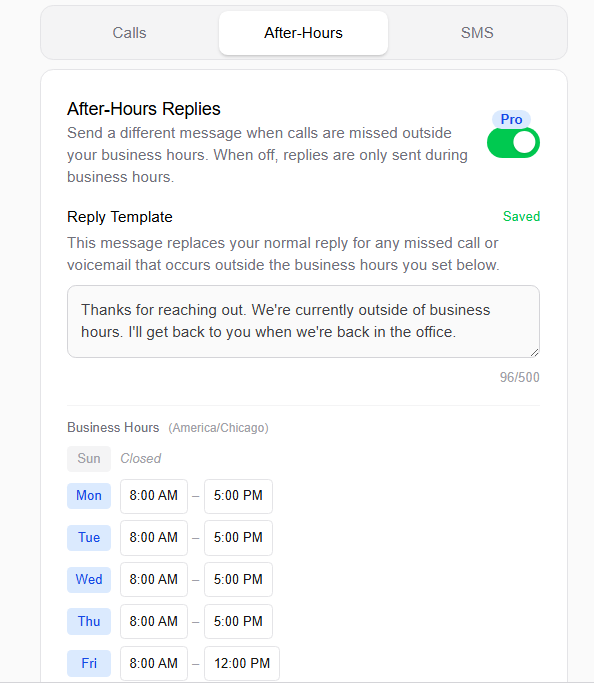
Both Free and Pro users can set business hours. On the Free plan, auto-replies only send during those hours — nothing sends outside them. On Pro, you can enable a separate after-hours template so callers still receive a reply outside business hours with a different message.
The After-Hours tab shows your reply template and business hours schedule with per-day open/close times and timezone.
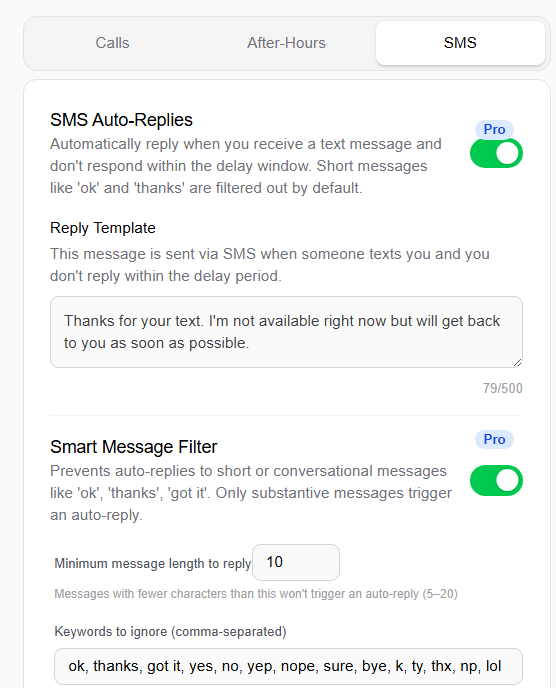
SMS Auto-Replies
With Pro, AutoReply can also respond to unanswered text messages — not just calls and voicemails. If someone texts you and you don't reply within the delay window, the app sends your template automatically. Short messages like "ok" and "thanks" are filtered out by default.
Smart cancellation applies here too — if you text or call the sender back during the delay, the auto-reply is cancelled automatically.
Smart Message Filter
Prevent auto-replies from triggering on short or conversational messages that don't need a response. Set a minimum message length (5–20 characters) and add keyword filters for common words like "ok", "thanks", "got it", and more. Only substantive messages will trigger an auto-reply.
How Auto-Reply Works
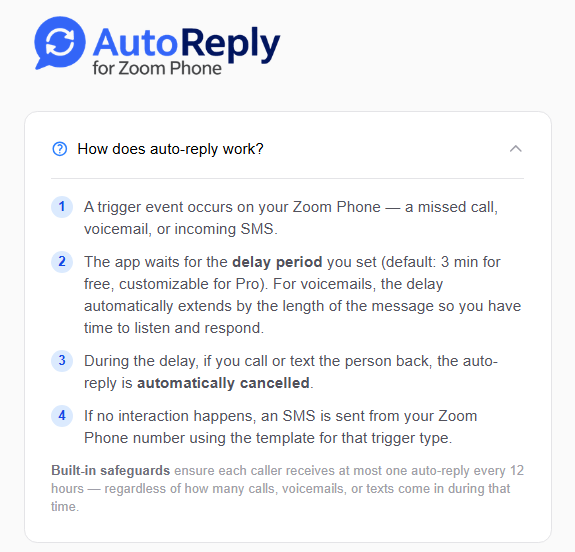
Every auto-reply follows the same four-step process. The smart delay is what makes AutoReply useful instead of annoying — it only sends when you actually need it to.
Built-in safeguards ensure each caller receives at most one auto-reply every 12 hours — regardless of how many calls, voicemails, or texts come in during that time.
Recent Activity Log
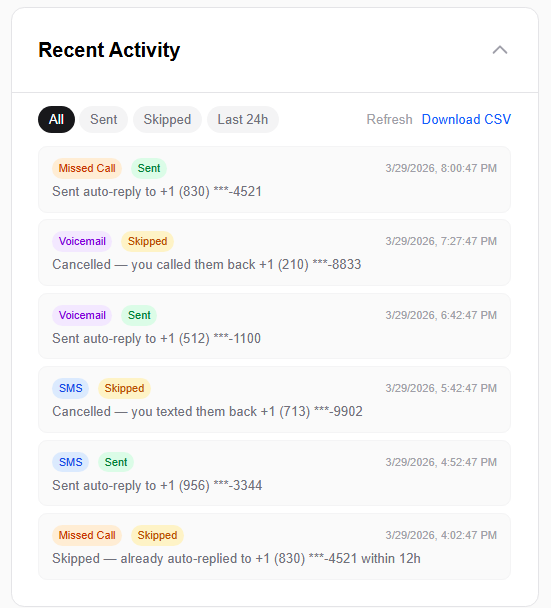
The activity log shows every event AutoReply detected and what happened — whether a reply was sent, cancelled, or skipped, and the reason why. Filter by All, Sent, Skipped, or Last 24h. You can also refresh or download a CSV export.
This is the best place to start if something isn't working as expected. If you contact support, include a screenshot of your Recent Activity — it helps us identify the issue immediately.
To view it: open Zoom → Apps → AutoReply for Zoom Phone → Recent Activity. Need help? Email support@autoreplyzoom.com.